
Attending Live Events like Pokémon GO Fest and Pokémon GO City Safari allow Trainers to enjoy special content and social experiences with fellow Trainers around the world! To maintain the best gameplay experience possible, attendance for some live events are limited and require Trainers to register for a ticket through our in-app ticketing system.
Typically, detailed information about upcoming live events (including dates, entry times, and registration/ticketing information) can be found on our official Pokémon GO blog. You can also follow Pokémon GO on X (formerly Twitter) for updates and event-related announcements.
Types of Ticketing
Tickets to real-world Pokémon GO events are distributed in a few ways:
Via purchasing event tickets from the in-app Shop
On a first-come-first-served basis through the event ticketing website
How do I purchase tickets to in-game events?
In-game events (such as Pokémon GO Fest: Global or Community Day) allow you to play where you are, with other trainers near you. Many in-game events are free to play, but have additional content and bonuses you can purchase.
Tickets to in-game events or event add-ons can be purchased from the Pokémon GO in-app shop.
To purchase tickets:
In the Map View, tap the Main Menu

Tap Shop.
In the Shop, tap the event image or ticket image you want to purchase.
Tap the Buy button.
A pop-up indicating that you’ve successfully purchased your ticket will appear.
After you tap OK, you can find the ticket in your Item Bag.
In addition to purchasing tickets for yourself, you can also purchase tickets to in-game events as a gift for other Trainers.
How do I purchase tickets to in-person events?
To attend Pokémon GO in-person events, like Pokémon GO Tour: Live or Pokémon GO City Safari, you must purchase tickets the event ticketing website via the Events menu in the Pokémon GO app.
Open the Pokémon GO app
In Map View, tap the Main Menu
 button
Tap Events

On the following page, all upcoming live events will be listed, starting with the soonest event at the top
- Tap the event to select the date and time you wish to attend the event.
- Tickets to Pokémon GO in-person events are available on a first-come-first-serve basis. If the event has not sold out, the label “Tickets Available” will be visible on the event image.
- Purchase tickets for friends (see the “Reserving Tickets for Other Trainers” section below), and input your payment information to complete your purchase.
- On the payment confirmation page, please take note of your order ID. You’ll also receive a confirmation email at the address you entered right before the payment.
Please Note: At this time, tickets are only usable by the Trainer accounts input during registration. Tickets are not refundable or transferable to other accounts unless purchased as a gift for another Trainer.
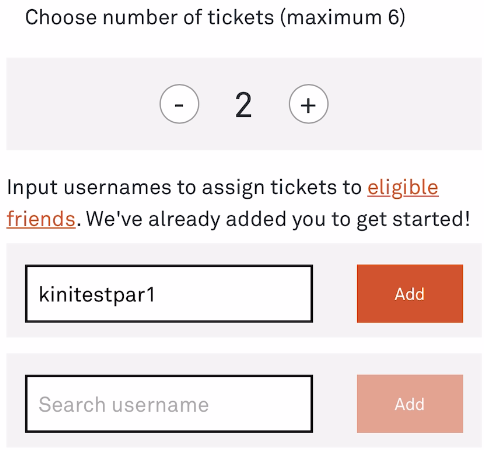
How do I buy tickets to in-person events for other Trainers (for orders with 2+ tickets)?
Input the Trainer Nickname of the Friends that you would like to buy tickets for (one name per input box) and click “Add.” Make sure that the spelling is correct. You must be at least Great Friends with the other Trainer.
You must also assign the entire quantity of tickets that you selected to eligible Friends before you can proceed to payment. Because only one ticket date and time is allowed per order, your Friends will all receive the same ticket type for the date and time you selected.
How can I purchase tickets for a Trainer that uses a Child Account (Niantic Kids or Pokémon Trainer Central)?
Trainers with child accounts can attend events when accompanied by a parent or guardian. Follow the steps below to purchase a ticket for a Child Account:
- The parent or guardian must be logged into the Pokémon GO account that’s linked to their child’s account.
In the parent account, tap the Main Menu button in Map View.
Tap “Events” in the upper right corner of the screen.
On the following page, check and select live events where tickets are available.
Tap "Get Tickets".
Choose the dates and time slots if available. The greyed-out options are sold out. Then proceed to the next page.
(If applicable) Choose your mobile service provider.
You can now manage the number of tickets you would like to buy. The default account is set to yours, and you can simply enter your child’s account Trainer name in the box and tap Add.
Note: If any error message appears, please double-check the following:Please ensure that the spelling is correct
Verify that the email associated with the parent/guardian’s Pokémon GO account matches the email address on file
Choose the add-ons you wish to purchase.
Double-check the Trainer name for the ticket purchase.
Confirm that the date information is correct. You can also make changes to the order on this page.
On the payment page, select your preferred payment method and complete the transaction.
After the payment, you will receive a confirmation email.
When you tap the “Events”page again, the status will change to Attending.
Once a ticket is purchased and the status changes to Attending, additional tickets cannot be purchased, and changes to the event schedule are not allowed. If you would like to purchase additional tickets, please contact customer support. Add-ons can be purchased until they are sold out.
Other important notes:
Children can attend in-person events when accompanied by a parent or guardian.
Unlike with standard accounts, a parent and child don’t need to be Friends to select the child’s username.




What are Add-Ons?
Certain events may feature optional Add-Ons, which are merchandise or additional features that will complement or enhance your event experience. You can select which Add-Ons you’re interested in purchasing once you’ve selected your ticket type. Some Add-Ons require additional input (e.g. T-shirt size).
Please note that you don’t have to apply Add-Ons to every user in your order if you’re buying tickets for multiple users.